How to Add a Free Shipping Bar to Your Shopify Store (And Actually Boost AOV)
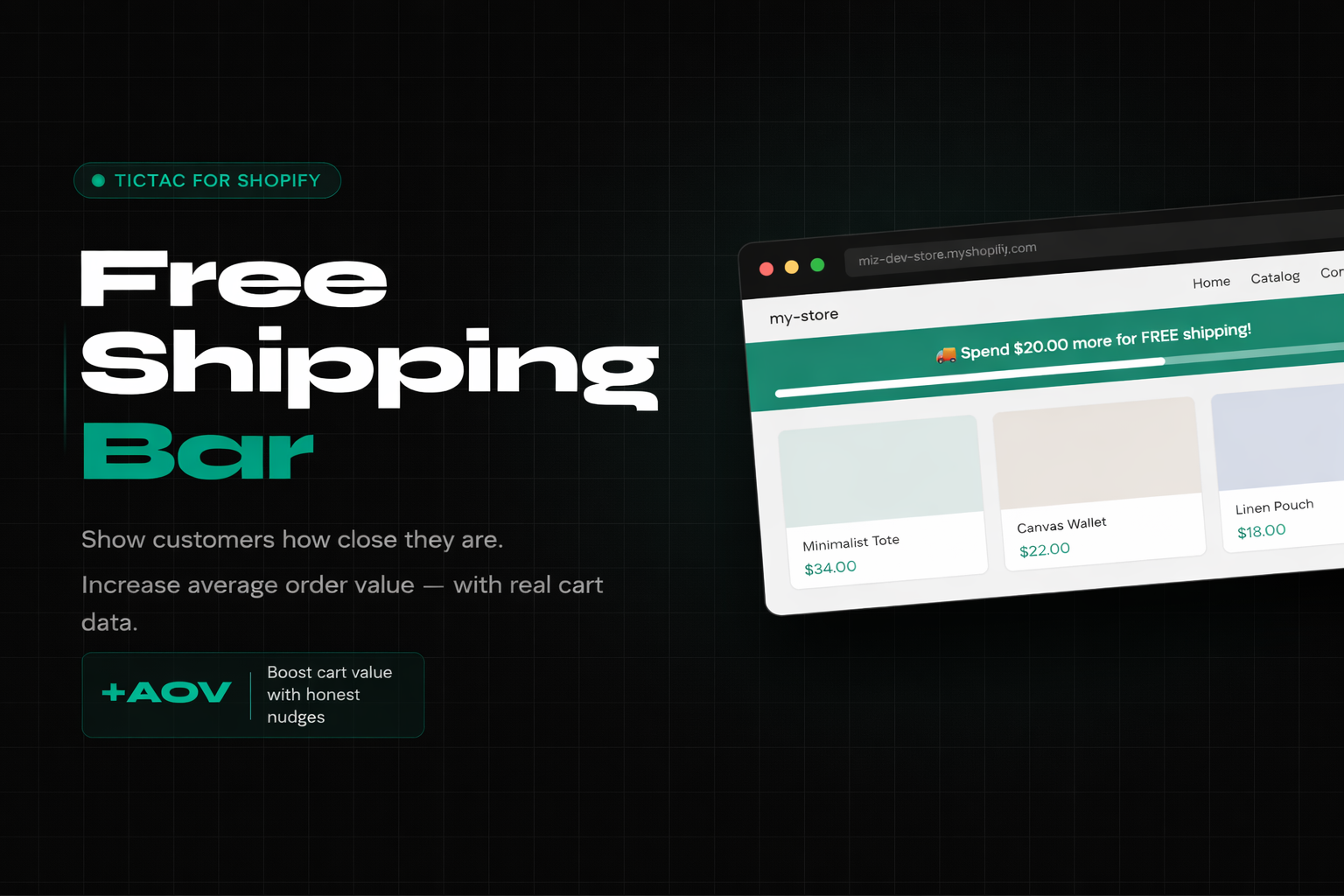
Free shipping is one of the biggest purchase drivers in e-commerce — and the #1 reason customers abandon their carts. But simply offering it isn't enough — customers need to see how close they are to unlocking it.
That gap between "we offer free shipping" and "you're $8 away from free shipping" is where most stores leave money on the table. A progress bar closes it.
Here's how to set one up on Shopify, and how to configure it so it actually changes customer behavior rather than just sitting there.
Why a progress bar works better than an announcement banner
Most stores already have some version of "Free shipping on orders over $50!" in their header. Customers read it, file it away, and move on. It's static information — easy to ignore.
A progress bar is different because it's personal. It reads the customer's actual cart and tells them their specific situation in real time: "You have $34. You need $16 more." That's not a generic message anymore. It's a nudge aimed directly at where they are right now.
The psychology is simple: people are far more motivated to finish something they've already started. Once the bar is at 60%, there's a pull to complete it that doesn't exist with a flat announcement. Same reason progress indicators work in onboarding flows, loyalty programs, and video games.
The catch — and this matters — is that it only works when the data is real. If you show inflated cart values or fake progress to make customers feel closer than they are, you're breaking trust the moment they notice. It needs to reflect exactly what's in their cart, nothing more.
Setting your threshold
Before installing anything, think about where to set your threshold. This single decision has more impact on your results than any design choice.
The standard advice is to go 10–20% above your current average order value. If your AOV is $42, a threshold of $48–$52 is a natural stretch goal. Achievable for most customers, meaningful enough to actually change behavior.
Setting it too high is the most common mistake. If your customers spend $40 on average and your threshold is $90, the bar shows them how far they are from something they were never going to do anyway. That's discouraging, not motivating.
Check your AOV in Shopify Analytics before you decide.
Installing TicTac
Shopify doesn't include a native free shipping progress bar, so you'll need an app.
Install TicTac on the Shopify App Store →
When you create a shipping bar in TicTac, the app automatically handles the free shipping configuration in your Shopify settings — you don't have to touch anything manually.
Once installed, go to TicTac → Free Shipping Progress Bar in your Shopify admin.
Setting up your bar
Threshold and basic config
Enter your free shipping threshold. TicTac reads your live Shopify cart data, so the bar updates the second a customer adds or removes an item — no page refresh, no delay.
Your three messages
This is where most people spend 30 seconds and then wonder why the bar doesn't convert. The messages matter.
TicTac gives you three states, each with dynamic variables that pull real cart data:
Progress message — shown while the customer is below the threshold.
🚚 Spend {remaining} more for FREE shipping!
Almost there message — shown when they're close.
🔥 Almost there! Just {remaining} away.
Success message — shown when they cross the line.
🎉 Free shipping unlocked! You're good to go.
The variables {remaining}, {threshold}, and {current} update automatically. What you write around them is up to you — keep it short, keep it warm, and make the success message feel like a genuine win rather than a system notification.
Where to put it
| Placement | Plan | Notes |
|---|---|---|
| Cart page | Free | Start here |
| Cart drawer | MVP ($4.99/mo) | High-intent, customers are already adding |
| Product pages (sticky) | MVP | Visible before they even reach the cart |
| Site header (global) | MVP | Always on, across all pages |
| Bottom sticky bar | MVP | Less intrusive global option |
| Checkout page | Coming soon | — |
Start with the cart page. It's where purchase decisions are being made, and it's the easiest placement to evaluate. Once you have a sense of the impact, adding it to product pages and the site header compounds the effect.
Live preview
TicTac has a live preview panel that simulates different cart values so you can see exactly what customers will see at $0, mid-threshold, and above the threshold. Use it. Small things like message length, emoji placement, and color contrast look very different in context versus in a settings panel.
Full walkthrough in this video:
Design (MVP plan)
On the MVP plan you get full styling controls: colors for each of the three states, border radius, and bar height.
Match the bar to your brand rather than leaving it on the default. A shipping bar that looks like it belongs in your store gets noticed differently than one that looks like a plugin. Customers don't register it as "an app" — it just feels like part of the experience.
Going further with VIP
The VIP plan adds two things worth knowing about.
Customer segmentation. Rules based on Shopify customer tags. VIP customers see a higher threshold. Wholesale accounts see no bar. First-time visitors see a lower, more achievable number. The bar adapts to who's shopping, not just what's in the cart.
Scheduled campaigns. Time-limited free shipping offers with custom thresholds, start dates, and end dates. There's also a Campaign Only mode where the bar only appears during an active campaign — useful if you don't want it running year-round but want it ready for Black Friday or a flash sale.
A few things worth watching
The success message is easy to neglect and worth an extra few minutes. It fires at a high-satisfaction moment — the customer just unlocked something. A flat "Free shipping achieved" does nothing with that. Something warmer reduces post-purchase doubt and reinforces the decision.
Test on mobile before going live. Most Shopify traffic is mobile, and bars that look clean on desktop sometimes crowd the interface on smaller screens. TicTac's preview panel covers this, but always check on a real device if you can.
Measuring it
TicTac's analytics dashboard (MVP+) shows revenue lift, AOV impact, conversion lift, and impressions by page and bar. These are correlational — sessions where the bar was visible, not proof that the bar caused the outcome. Use them as directional signals.
For a tighter read, the MVP plan includes A/B testing. Two bar variants, split traffic, let the numbers decide before you commit.
A free shipping progress bar is one of the few store changes you can make in an afternoon that has a real shot at moving your AOV. The install is fast — it's the thinking about threshold, messages, and placement that separates stores that see a difference from stores that don't.
Install TicTac free on the Shopify App Store →
TicTac is built by Ikonis Labs, a Shopify app studio focused on honest urgency marketing tools for independent merchants.